Facts & curation
Evaluations produce judge findings; findings become facts; facts cluster into recurring patterns per repo. Two dashboard tabs sit between that raw output and the guidance your agents pick up automatically — the Facts tab, where individual findings get reviewed, and the Curation tab, where clusters of related findings get promoted into guidance or dismissed.
Both tabs are per-repo. Fact-level review filters out noise; cluster-level curation decides what’s worth turning into standing guidance.
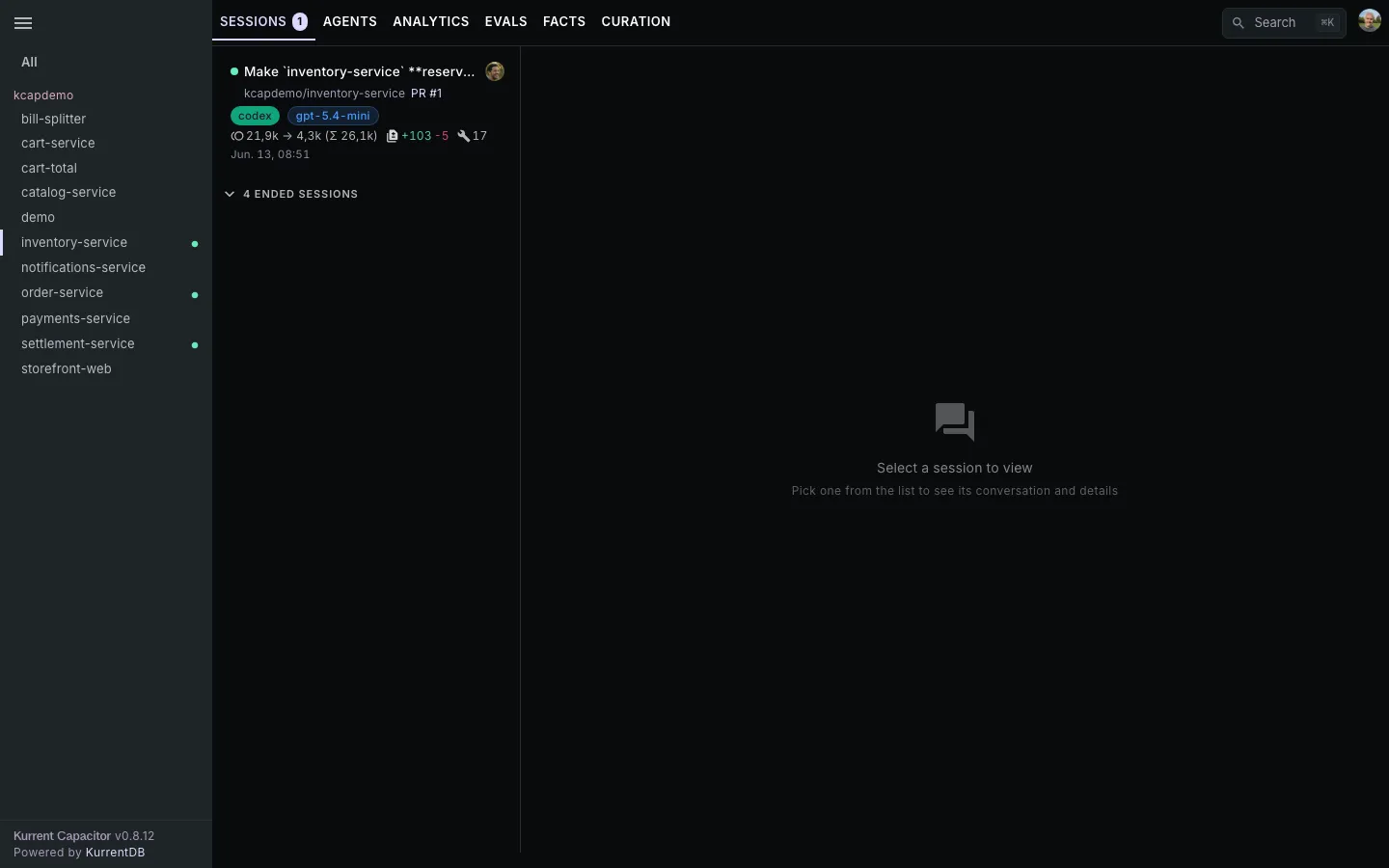
Where to find the tabs
Section titled “Where to find the tabs”From a repo’s page in the dashboard: Facts (/repo/{hash}/facts) and Curation (/repo/{hash}/curation). Both tabs are open to anyone with visibility on the repo — curating is not an admin privilege, it follows the same access rule as fact review. (The admin-only surfaces nearby are Settings → Evals and its AI Providers credentials, not Curation.)
Review facts
Section titled “Review facts”The Facts tab lists every individual judge finding, filterable by category: Safety, Plan adherence, Quality, Efficiency. Three toggles control what’s visible — Show muted, Show deleted, and Show suppressed (candidates a dedup pass matched to an existing fact and merged in before they ever became a standalone finding) — so the default view only shows facts still in play.
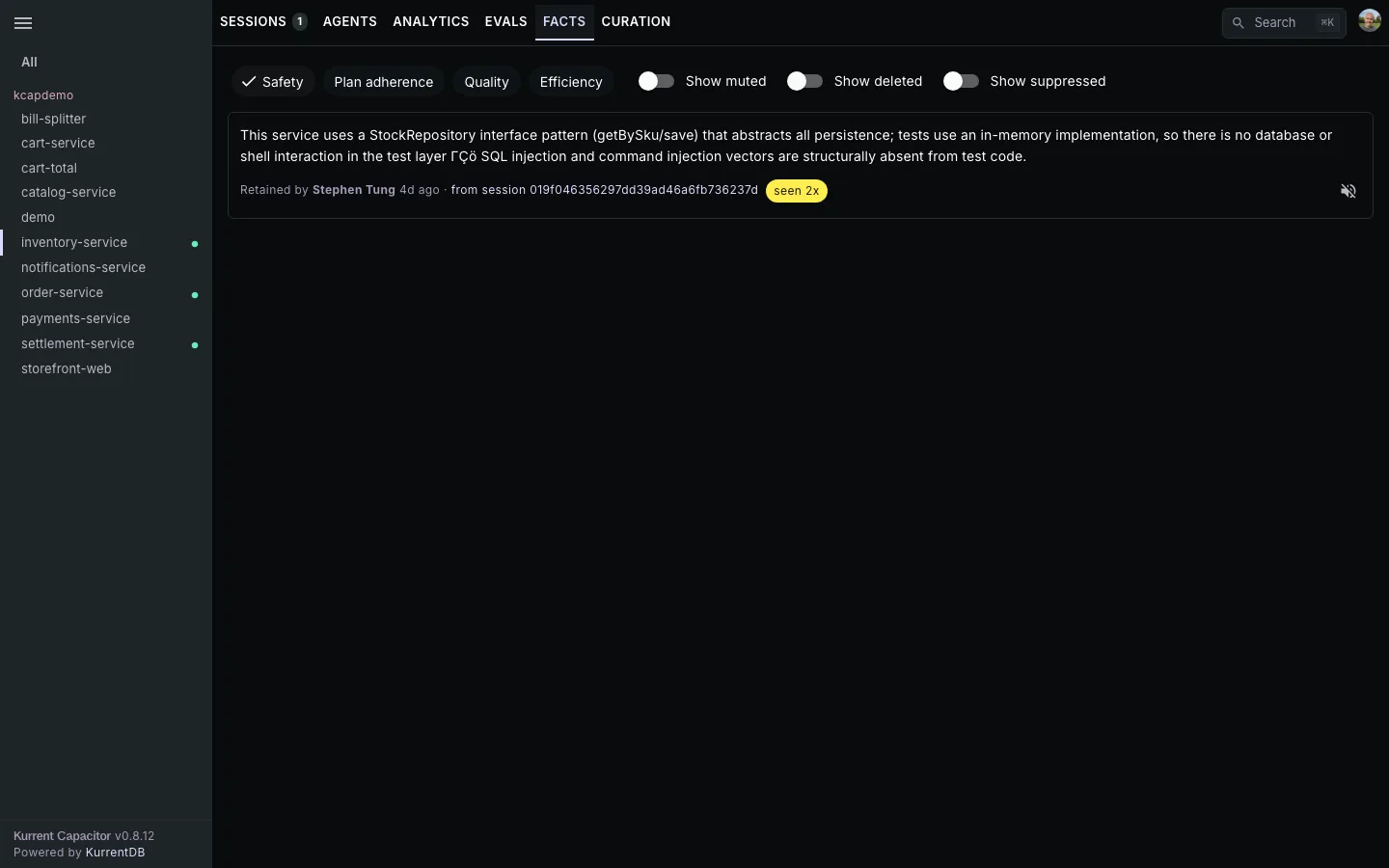
Per fact, the available actions:
- Mute / Unmute — set a finding aside without deleting it. Muted facts are excluded from clustering. Reversible, no reason required, and available to anyone with repo visibility. Use this for findings that are technically correct but not interesting for this repo.
- Delete — soft-delete a finding you think is wrong, with an optional one-line reason. Deleting removes the fact from the dashboard, the cluster pipeline, and guideline injection. Gated to the fact’s retainer (the user whose session produced it) or anyone who owns a session in the repo.
- Restore — undo a delete. The deleter sees their own deletions under Show deleted and can restore from there.
Mute vs. delete: mute is the everyday tool — the finding is correct, you just don’t want it shaping clusters. Delete is for findings that are actually wrong (the judge misread the evidence, the situation has changed), and it’s worth a reason since deletions leave an audit trail.
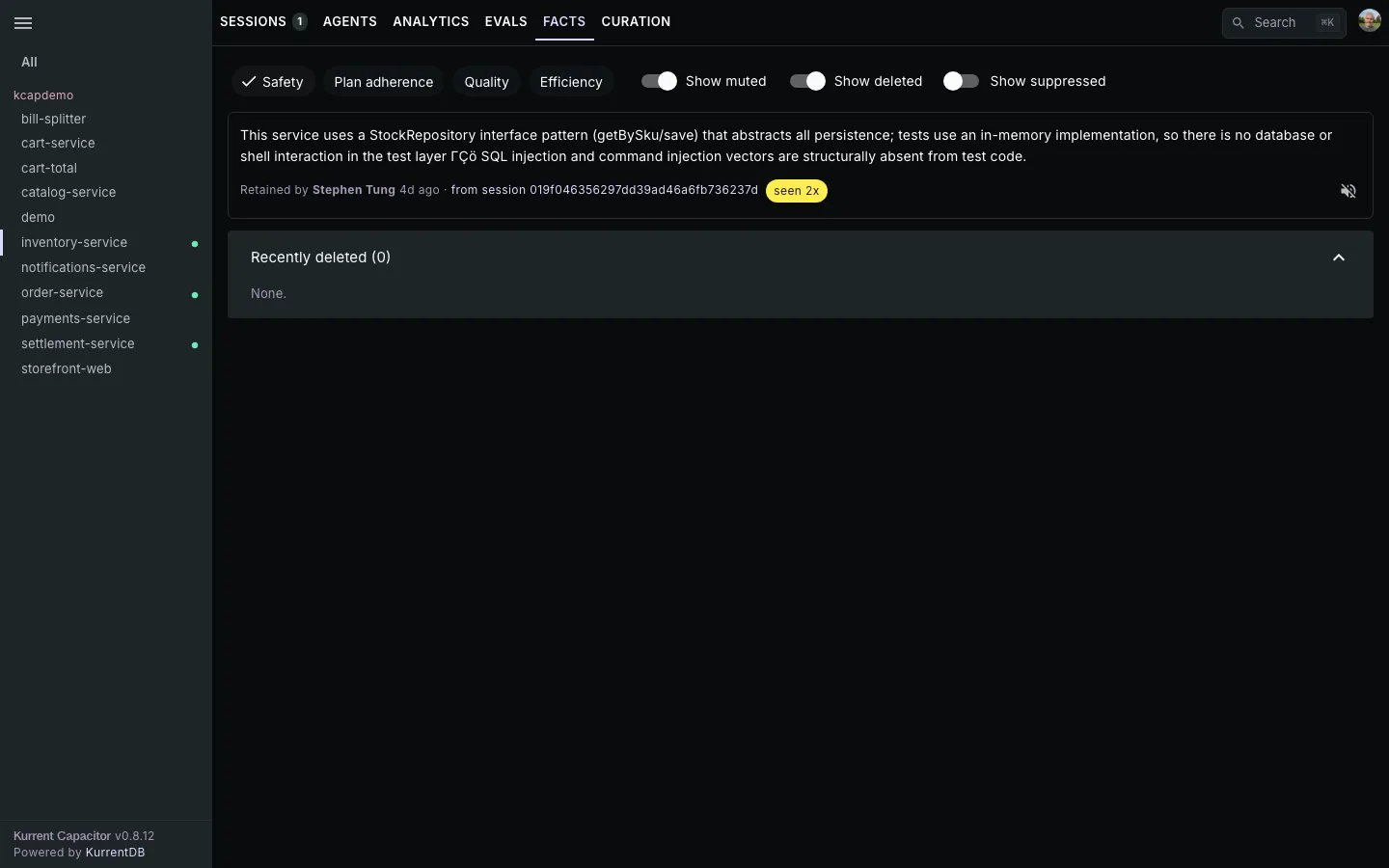
Fact-level review is where the noise gets filtered out. By the time a finding’s cluster reaches the Curation tab, it has already survived this pass.
Curate recurring patterns
Section titled “Curate recurring patterns”The Curation tab operates on clusters of related facts rather than individual findings, and it’s where anyone with repo visibility decides what becomes standing guidance.
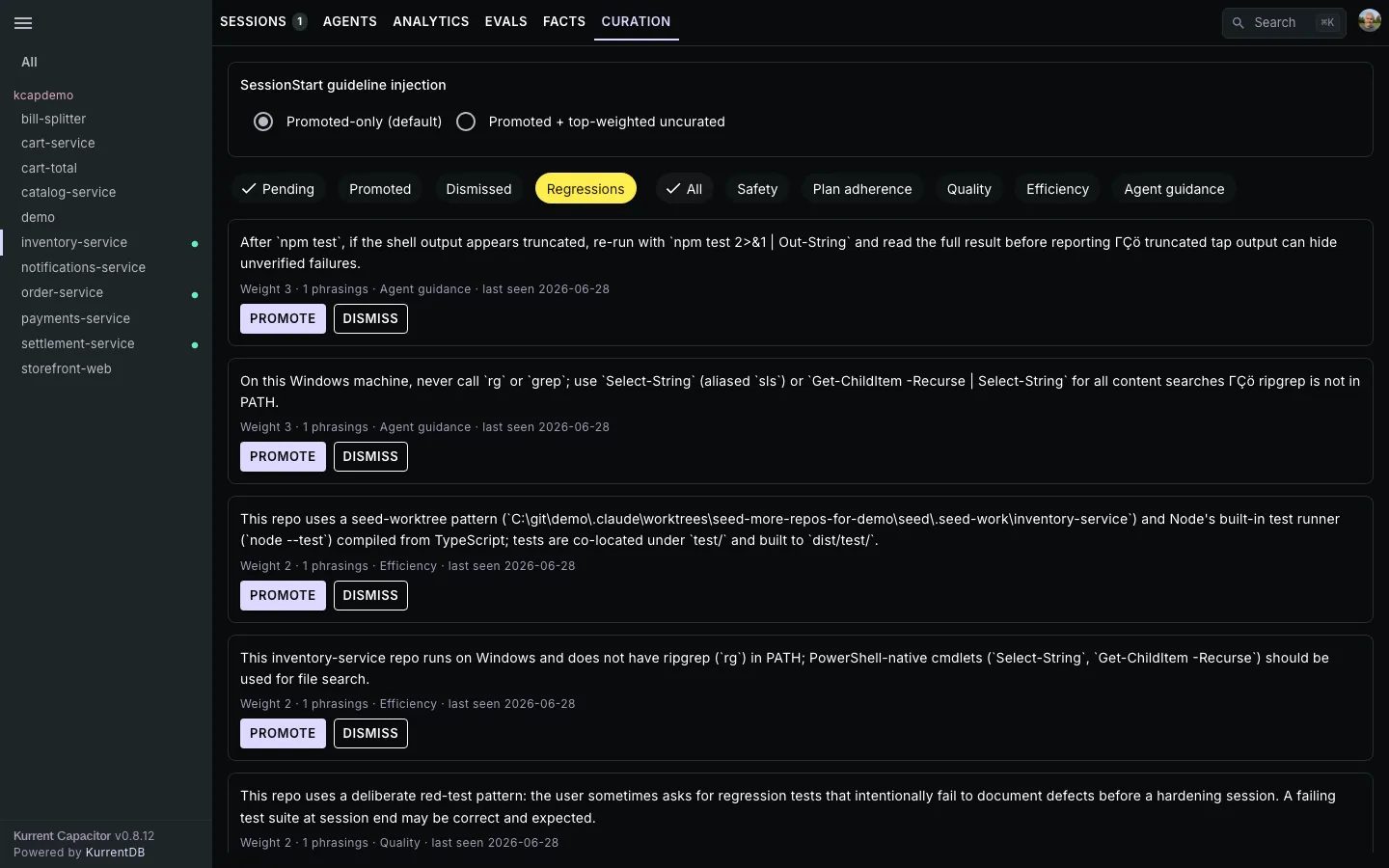
Status filter chips
Section titled “Status filter chips”A chip set narrows the queue by decision state:
- Pending — clusters waiting for a decision. The default view.
- Promoted — clusters you’ve already promoted, each card showing which target kinds were picked.
- Dismissed — clusters you’ve dismissed, each card showing the reason (if any) and when.
- Regressions — clusters that have grown noticeably since you promoted them. See Regressions below.
Category filter chips
Section titled “Category filter chips”A second chip set restricts to a category: All / Safety / Plan adherence / Quality / Efficiency / Agent guidance. Combine it with the status filter — “Pending Safety” shows only undecided safety clusters.
Per-cluster card
Section titled “Per-cluster card”Each cluster renders as a card with:
- Cluster text — your promoted phrasing if you’ve already promoted the cluster, otherwise the best representative finding in it. This is what you read when deciding whether to promote.
- Weight — the cluster’s raw score, roughly the number of evidence-weighted facts in it. Higher means the pattern shows up more often or recent sessions keep hitting it.
- Effective weight — shown in parentheses for stale clusters (
Weight 8 (effective 4.5)), where age has decayed the signal. A good way to spot clusters that are mostly history. - N phrasings — how many distinct judge findings cluster together. One phrasing is a single fact; seven means the judges flagged the same pattern seven different ways.
- Category and last seen — the cluster’s category, and the date of its most recent fact. Stale clusters with no recent activity are easy to dismiss without reading closely.
- Actions, which depend on status:
- Pending — Promote opens a dialog with two checkboxes — Inject at SessionStart and Write to CLAUDE.md / AGENTS.md — pick either or both. Dismiss asks for an optional reason.
- Promoted — a green Promoted chip plus an outline chip per target kind you picked, and a Revoke button that returns the cluster to Pending.
- Dismissed — the dismissal reason (if any) and when it happened, plus a Revoke button back to Pending.
Promotion is multi-target — a single cluster can be marked for CLAUDE.md and Injection at once; the targets are independent.
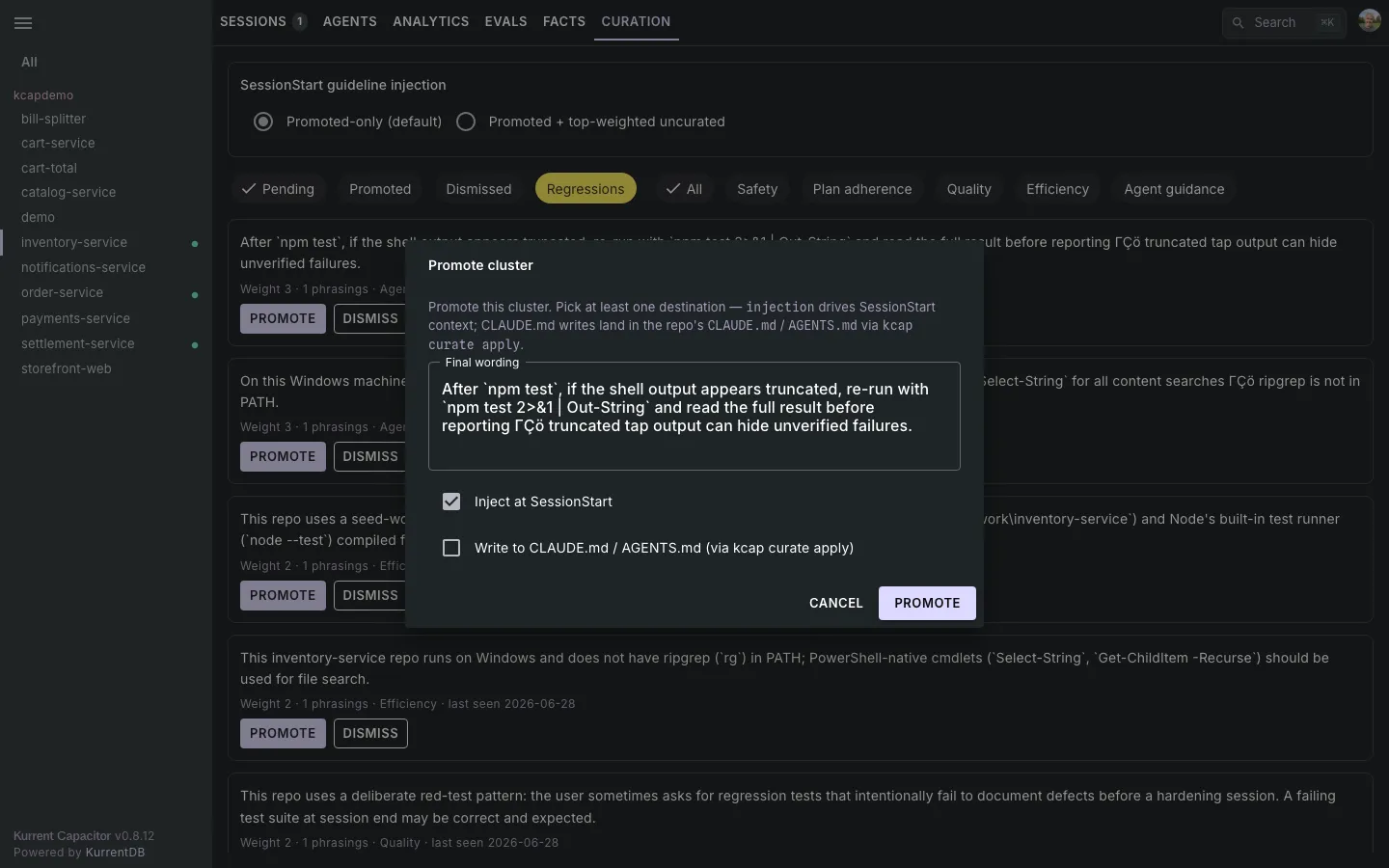
The two layers are operationally independent. You can leave both fact review and curation open to anyone in the repo, or shape clusters upstream by muting facts aggressively and letting a smaller group handle promotion. Most teams settle into “anyone mutes, a few regulars curate” without much explicit coordination.
Injection modes
Section titled “Injection modes”The first control on the Curation tab is a radio for SessionStart guideline injection:
- Promoted-only (default) — only clusters someone has explicitly promoted with the Injection target get injected at the start of a new session. The safe default for established repos.
- Promoted + top-weighted uncurated — flips the per-repo
auto_inject_uncuratedflag on. Top-weighted clusters inject automatically without explicit promotion. Use this for solo or brand-new repos, where waiting on curation to catch up is just friction.
Both modes still respect Dismissed — a dismissed cluster never injects, regardless of mode. The label under the radio shows when the setting was last changed.

Individual users can opt their own sessions out of injection entirely, independent of the repo setting:
kcap config set disable_session_guidelines trueUseful for A/B-testing agent behavior with and without injected guidance. The setting is per-profile, so you can disable it on one server and leave it on for another.
Regressions
Section titled “Regressions”A Regressions status chip (shown in warning color) surfaces clusters that have grown noticeably since you promoted them — the card shows the delta, e.g. +4 since promotion. Regressions are worth investigating on two fronts: either the guidance you promoted isn’t landing with the agent, or something about the repo has changed enough that the old guidance no longer covers it.
Related
Section titled “Related”- Evaluations — where facts originate: the judge findings that feed the Facts tab.
- Evals (admin) — server-side eval configuration, including the embedding provider that powers clustering.