Hosted agents
A “hosted agent” is a Claude Code or Codex instance run by a daemon on your machine rather than directly in your shell — launched from the dashboard, or from your terminal with kcap run-agent. The daemon talks to the Capacitor server over SignalR, captures the session, and surfaces a live terminal in the dashboard; dashboard launches run in an isolated git worktree. Multiple teammates with view access can watch it run and send input.
Hosted agents are available for Claude Code and Codex today. The other supported agents — Cursor, Gemini CLI, Pi, OpenCode, Antigravity, Kiro, and GitHub Copilot CLI — are captured when you run them locally (see Setup CLI), but can’t yet be launched as hosted agents from the dashboard.
This page covers daemon setup, launching from the dashboard, running a daemon-hosted agent straight from your terminal with kcap run-agent, and what to expect when more than one person is driving the same session.
Why hosted agents
Section titled “Why hosted agents”A hosted agent earns its keep when:
- You want to start work from your phone, or from any browser, without opening a terminal.
- You want to hand off a session to a teammate mid-run (they take over input from the dashboard).
- You want to run several agents in parallel without juggling terminal tabs.
- You want the work to happen in an isolated worktree, so your main checkout stays untouched.
For solo work in a familiar repo, running claude locally is faster. The hosted path adds value once collaboration or remoting is in play.
Run a daemon
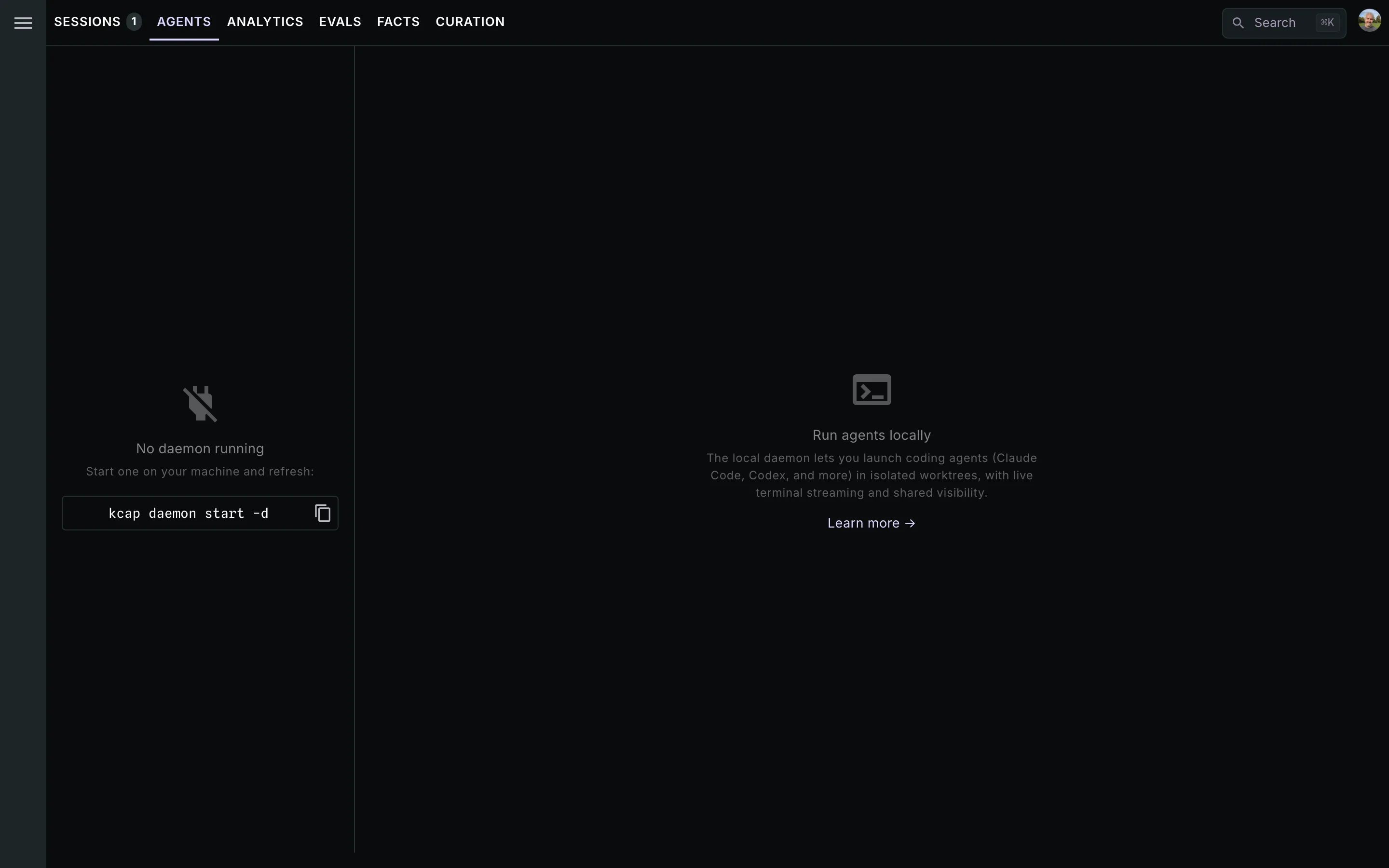
Section titled “Run a daemon”kcap daemon start # foreground, --name defaults to your OS usernamekcap daemon start -d # background (daemonize)kcap daemon start --name laptop -d # named — run multiple daemons on the same machineA running daemon advertises itself to your Capacitor server. The dashboard’s launch dialog shows every daemon you have available, plus which vendors (Claude / Codex) each one can spawn.
kcap daemon status # list all running daemonskcap daemon status --name laptopkcap daemon stop --name laptopkcap daemon stop --yes # stop all, no promptkcap daemon doctor # diagnose lock-file statekcap daemon doctor --clean # also remove stale lock/pid filesEach daemon holds an exclusive flock on ~/.config/kcap/daemons/<name>.lock for its entire lifetime, including hard kills. Two daemons with the same name on the same machine collide and the second exits with code 2; two daemons with different names run side-by-side without issue.
Keep it running (install as a service)
Section titled “Keep it running (install as a service)”kcap daemon start -d runs only until the process dies — a crash, or an OS memory-pressure kill (macOS jetsam / Linux OOM killer) that sends an uncatchable SIGKILL. To auto-restart the daemon and start it at login, install it as a per-user OS service:
kcap daemon service install # launchd (macOS) / systemd --user (Linux) / Scheduled Task (Windows)kcap daemon service install --name laptop # a service per daemon namekcap daemon service status # installed / running statekcap daemon service stop # stop the running service (stays installed)kcap daemon service start # start it againkcap daemon service uninstall # stop and remove the serviceinstall pins the active profile via KCAP_PROFILE and captures your current PATH into the unit, so the supervised daemon resolves the same server URL and claude / codex binaries it would from your shell. Pass --profile <name> to pin a different profile, --max-agents <n> to bake an override, or --no-start to register without starting.
The service restarts the daemon on a crash or SIGKILL, but not on a clean stop. Stop a service-managed daemon with kcap daemon service stop (or uninstall) rather than kcap daemon stop — a raw stop would just be relaunched. kcap daemon status and kcap daemon doctor both report installed services.
Configure agent binaries
Section titled “Configure agent binaries”The daemon needs to know where the Claude and Codex CLIs live. Defaults resolve claude and codex via PATH; override only if you need a specific binary:
kcap config set daemon.claude_path /opt/claude/bin/claudekcap config set daemon.codex_path /opt/codex/bin/codex| Key | Default | Description |
|---|---|---|
daemon.claude_path | "claude" | Path to the Claude CLI binary. |
daemon.codex_path | "codex" | Path to the Codex CLI binary. |
At startup the daemon probes both paths and advertises only the vendors it can actually spawn. The launch dialog hides whichever isn’t available, so an unconfigured vendor isn’t a tripping hazard — it just doesn’t appear.
You can override either at runtime via environment (takes precedence over the profile):
KCAP_CLAUDE_PATH=/opt/claude/bin/claude kcap daemonKCAP_CODEX_PATH=/opt/codex/bin/codex kcap daemonLaunch from the dashboard
Section titled “Launch from the dashboard”Switch to the Agents tab. Each running daemon gets a Launch button. Click it, pick:
- Vendor — Claude or Codex (only available vendors are shown)
- Repository path — pick from your known repos, or choose Enter a path manually… to type any absolute path on the daemon host. On a fresh daemon with no known repos the dialog opens straight into manual entry — just type the path.
- Initial prompt — optional; if blank, the agent opens at a prompt
…and the daemon checks out an isolated worktree, spawns the agent, and streams a terminal back to the dashboard.
Known repos
Section titled “Known repos”The launch dialog’s Repository path dropdown lists repos the daemon already knows about. A repo joins that list the first time you launch a hosted agent into it — note that simply recording a session in a repo does not add it, so a brand-new daemon starts with an empty list. You don’t have to seed the list first: choose Enter a path manually… in the dialog, type the repo’s absolute path, and it’s remembered for next time once the agent launches.
You can also manage the list from the CLI:
kcap repos # list known repos (sorted by last used)kcap repos add . # add current directorykcap repos add ~/dev/projectkcap repos remove ~/dev/oldThe list is persisted to ~/.config/kcap/repos.json and reported to the server when the daemon connects. A kcap repos add made while a daemon is already running is picked up the next time that daemon reconnects (or the next time it launches an agent).
Run an agent from your terminal
Section titled “Run an agent from your terminal”kcap run-agent is the terminal-side counterpart to a dashboard launch: the daemon hosts the agent rather than your shell, so you can detach and let it keep running, then re-attach later — tmux for your coding agent.
kcap run-agent claude # start a Claude agent in the current directorykcap run-agent codex --worktree # Codex, in a throwaway git worktreekcap run-agent claude --private # keep it purely local (never leaves this machine)kcap run-agent claude -- --model opus # everything after -- is passed through to the agentkcap attach <agent-id> # re-attach to a running agentkcap ls # list the daemon's agents (id, status, repo)Vendors are Claude and Codex — the same two as dashboard launches. kcap run-agent starts a daemon automatically if none is running.
- Where it runs. By default the agent edits your real files in the current directory.
--worktreeruns it in a throwaway git worktree instead (under.capacitor/worktrees/, on acapacitor/…branch), leaving your checkout untouched. - Detach and re-attach. Press
Ctrl-Qthendto detach; the agent keeps running in the daemon.kcap attach <agent-id>reconnects — get the id fromkcap ls. When more than one viewer is attached (your terminal plus a browser, say), the shared terminal clamps to the smallest one, tmux-style, and grows back when that viewer leaves. - Registered by default. The agent registers with your server just like a dashboard launch, so it also appears in your dashboard and you can drive it from the browser — start in the terminal, continue anywhere. It’s owner-only until you share it, and permission prompts route to the dashboard’s permission bridge.
--privateopts out of that: the agent is purely local — not registered, not streamed to the server, and its permission prompts are answered in your terminal. It’s still recorded as one of your own sessions.
run-agent, attach, and ls are Unix-only today; on Windows they print a notice and do nothing.
Multi-user input
Section titled “Multi-user input”Anyone with view access on a hosted agent can send input to it — text, special keys, permission answers, even stop. Input is per-agent FIFO and attributed to the sender, so the session record shows who typed what.
Practically: if you and a teammate are both watching a hosted Claude session, you can both type into the same prompt. The transcript records each message with the sender’s identity. Useful for pair-debugging or for handing off mid-flight.
Codex hosted agents
Section titled “Codex hosted agents”Codex hosted agents need the Codex hook surface installed (the setup wizard handles this; if you skipped, run kcap plugin install --codex). Once installed, the daemon starts Codex with:
--sandbox workspace-write— Codex can edit files in the agent’s worktree but escalates anything else.--ask-for-approval on-request— sensitive operations bubble up to the dashboard’s permission bridge.
PR review now works for hosted Codex agents. When a review runs on a hosted Codex agent, the daemon injects the same kcap-review MCP server a Claude reviewer gets — pointed at kcap mcp review — as ephemeral codex -c config overrides (nothing is written to ~/.codex/config.toml, so there’s nothing to clean up), and passes the review prompt as Codex’s initial prompt. The sandbox and approval-mode selectors in the launch dialog are still a planned follow-up; for now the daemon defaults shown above apply to every hosted Codex session.
Graceful shutdown
Section titled “Graceful shutdown”When the daemon stops — Ctrl-C, a kcap daemon stop, a clean reboot — it tries graceful /exit on every active hosted session first, then calls EndAgentSession so the session record reflects an ended state even on SIGTERM, crash, or detach. You shouldn’t see “running forever” zombie sessions from clean daemon shutdowns.
Related
Section titled “Related”- Review flows — spec/code review loops whose Codex reviewer runs on this same daemon-launched hosted-agent machinery.
- The dashboard — the Agents tab where you launch.
- CLI > Configuration & profiles — full key reference for
daemon.*settings.