Work items
A work item aggregates one line of work — the issue(s), pull request(s), and commits behind it, and every AI session that served it. It is not one-to-one with an issue: a feature ticket, the PR that closes it, and a later bug ticket can all hang off the same work item. Work items are repo-scoped, so the same issue key in two repositories produces two work items.
A work item comes into being one of three ways, and all three converge on the same item so they deduplicate:
- Seeded from an issue — an issue key mentioned in a session (
AI-1234, or a GitHub#12). - Seeded from a pull request — a PR number or URL.
- Declared ad-hoc — created by title from inside an agent session (see Declaring a work item).
You mostly don’t create work items by hand. Capacitor correlates them from what your sessions already reference.
How sessions attach automatically
Section titled “How sessions attach automatically”You rarely attach a session by hand — Capacitor does it for you, in two ways.
By the references in the session (always on). When a session ends, Capacitor reads through it for anything that names a piece of work: an issue key like AI-1234, a pull request, a commit, or a feature branch. When it finds a clear match, it attaches the session to that work item — and creates the work item first if it doesn’t exist yet.
This carries across a continuation chain: resume or compact a session and every session in the chain attaches to the same work item, so a piece of work spread over several sessions stays together.
By AI, when the references aren’t clear (off by default). Some sessions don’t mention their work so plainly. For those, an optional AI agent reads the session and decides whether it belongs to a work item that already exists, needs a new one, or should be left unattached. An administrator turns this on and picks which projects and repositories it runs in — see Work items (admin).
Declaring a work item from a session
Section titled “Declaring a work item from a session”When you want to be explicit — the automatic attachment guessed wrong, or you want a session pinned to a ticket before it references it — declare the work item from inside the agent. The kcap-workitems MCP server (auto-registered by the kcap Claude Code plugin; run manually as kcap mcp workitems; Claude Code only) exposes two tools:
declare_work_item— attaches the current session and its whole continuation chain to a work item. Pass exactly one of:issue_key— e.g.AI-1234; attaches to (or creates) that issue’s work item.pr_number— attaches to (or creates) that PR’s work item.work_item_id— attaches to an existing work item directly.new_title— creates a fresh ad-hoc work item with that title.
get_session_work_items— lists the work items the current session is attached to.
Both require kcap login on the host.
In practice you don’t call these yourself — you tell the agent, and it calls the tool:
You: This session is for AI-1234.
Agent: (calls
declare_work_itemwithissue_key: "AI-1234") Attached this session and its chain to AI-1234.
Precedence. An explicit declaration outranks anything the automatic attachment decided: neither the reference matching nor the AI agent can override a work item you declared. A declaration attaches the session and makes the declared item the session’s (and chain’s) primary work item — the one shown on session cards and the dashboard’s work-item chip. It does not erase an earlier automatic attachment; get_session_work_items still lists every attachment, the automatic one included, but the declared item holds primary. Declaring a different item again re-points the primary.
The Work Items tab
Section titled “The Work Items tab”Open Work Items from the dashboard tab bar (all repositories) or a repository’s own Work Items tab (/work-items). The list shows a card per work item — title, status, the issue/PR/commit key chips, session and link counts, repository, and last activity — and updates live as new sessions correlate. An Absorbed only filter reveals items that have been merged away.
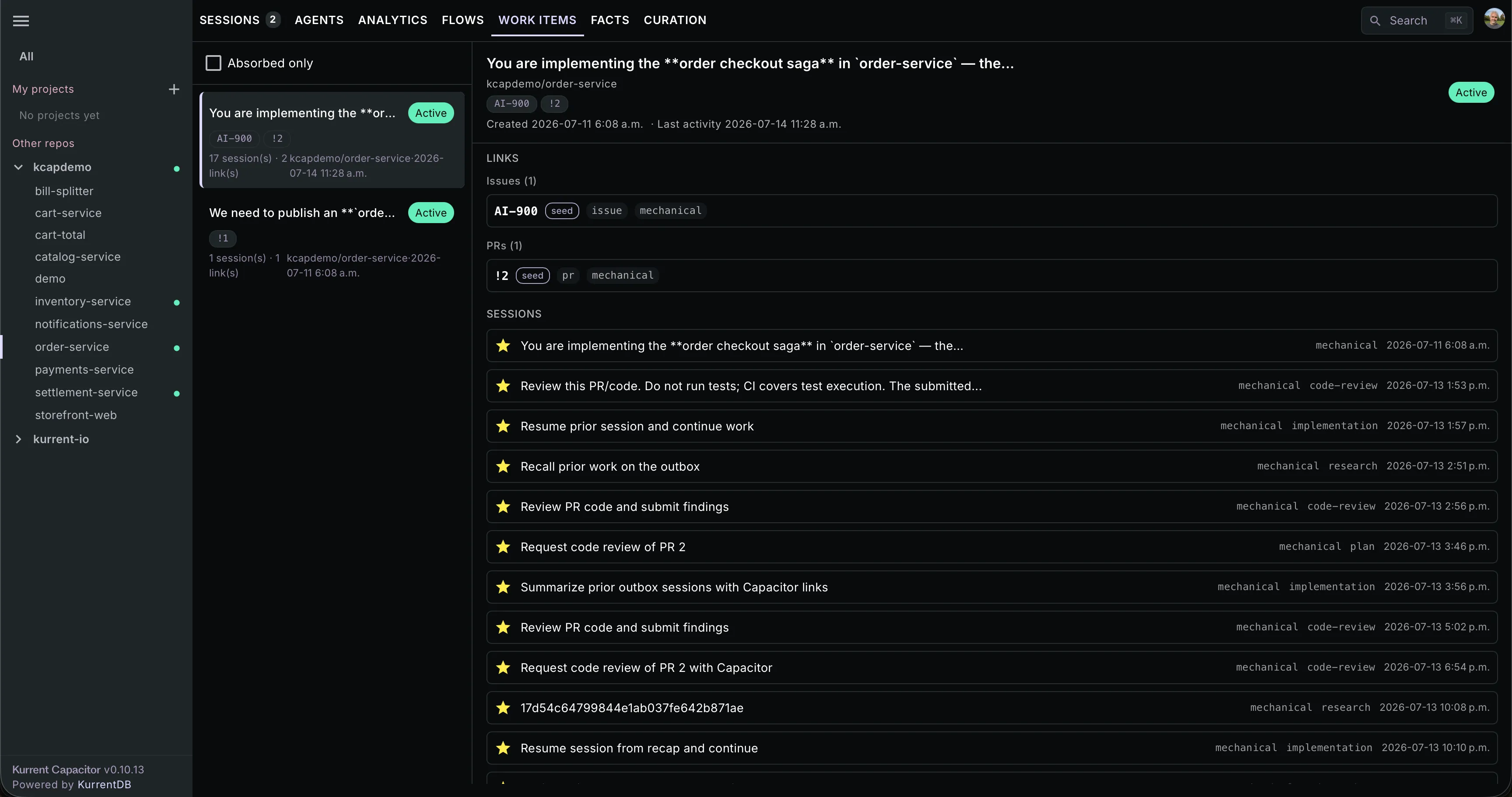
Selecting a card opens the detail panel:
- Links, grouped by kind (Issues / PRs / Commits), each with a tracker-state chip and a click-through to GitHub or your issue tracker. If every tracker link is reported missing, the panel shows an Unverified warning.
- A milestones timeline —
pr_merged,issue_closed,idle,reopened. - The attached sessions, in order, each with a phase chip (implementation, code-review, bugfix, and so on) and a star on the primary session. Click one to jump to that session; conversely, every session card carries a work-item chip pointing back here.
Work items are managed automatically — there is no rename, close, or detach control in the UI. To correct an attachment, declare the right work item from the session (see above).
Statuses. A work item is either active or absorbed. When correlation discovers that two items are the same line of work — typically an issue-seeded item and a PR-seeded item later joined by shared evidence — they merge: the survivor keeps all links and sessions, and the other is marked absorbed and kept for history, hidden from the default list and reachable through the Absorbed only filter.
Visibility
Section titled “Visibility”Work items are visible across your organization, because they aggregate repo-level issues and PRs. The detail panel’s session list, though, applies the same visibility rules as everywhere else in the dashboard, so sessions you aren’t allowed to see stay hidden even on a work item you can open. See Visibility & sharing.
Related
Section titled “Related”- Work items (admin) — enable the AI correlation agent and set its per-project / per-repository scope.
- The dashboard — where the Work Items tab lives.
- Session recall — the other MCP surface your agent uses to reach past work.